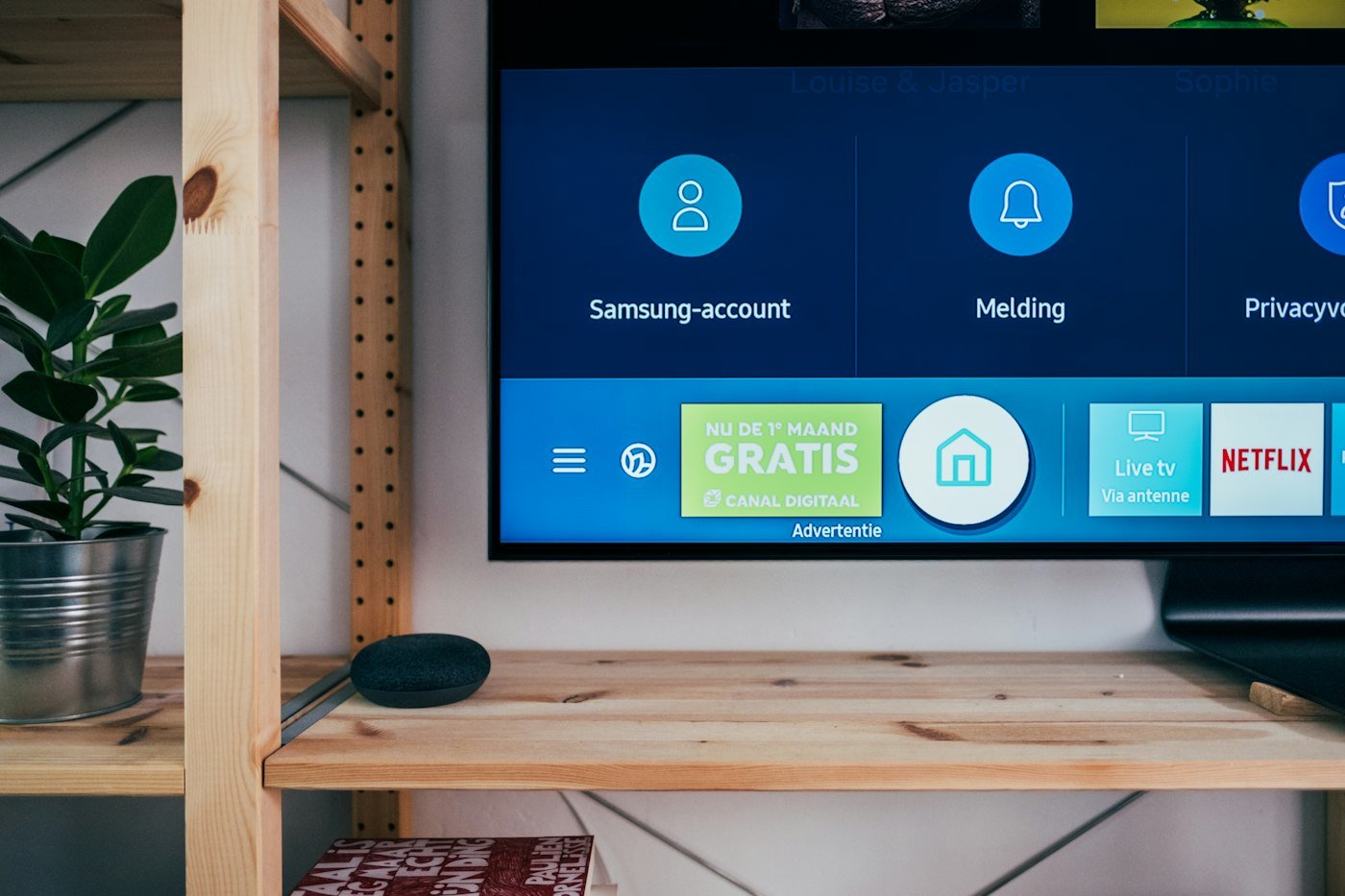
People who search how to install IPTV on a smart TV usually want one thing: the living-room set to open a guide without a laptop on the coffee table. This article is the household order for Vistra TV on Samsung, LG, and Android / Google TV screens. It assumes you already have—or are about to receive—an activation email from vistratvs.com. It does not assume every four-year-old panel is a friendly installer.
If you are still deciding what the service is, start with what Vistra TV is (and is not) or the beginner map in best IPTV for beginners. If the HDMI port already holds a Fire TV Stick, the cleaner path is often putting Vistra TV on a Fire TV Stick. Stay here if you want the clicks on the television itself—or a clear reason to stop fighting the television.
What has to be true first
You need a login. Paid checkout on this site is a short form, then PDCash, at $16, $31, $40, or $60 for 1, 3, 6, or 12 months. A 24-hour trial is available from the header or contact if you have never seen the picture on your own Wi-Fi. Either path ends with an activation email that names a player and gives you a login, a playlist, or both.
You need the television on the main home network—not the guest SSID, not a phone hotspot, not hotel Wi-Fi. Guest networks often open the store and then fall apart when the guide tries to load. That looks like a broken player. It is usually a broken path to the router.
You need the model to accept apps. Many Samsung and LG sets will. Some older ones will not, or they will hide sideload menus behind firmware that has no patience for third-party players. The shorter device list lives on setup. Treat that page as a starting point, then confirm with the player name in your email once you have one.
We do not ship a Vistra-branded stick. We do not require you to buy a new panel. If the set refuses the named player, a Firestick or a laptop already in the house is the usual workaround—not a technician from our warehouse.
Store install versus sideload
Two install paths exist on smart televisions. The first is the set’s own store: Google Play on Android / Google TV, the Samsung store, or the LG Content Store. You search for the player named in the activation email, install it, open it, and type the login. When the listing exists and the set allows it, this is the calm path. No USB sticks. No developer toggles. No neighbor’s APK from three years ago.
The second path is sideload: enabling unknown sources or developer options, moving an installer file, and hoping the firmware still allows it. Some households need this. Many do not. Sideload is where beginners invent typos, install the wrong app, and then blame the subscription. If the store listing for the named player exists on your set, use the store. If it does not, pause before you invent a sideload adventure—especially on a Saturday when kickoff is ninety minutes away.
A third reality sits between those two: the store search returns nothing useful, or the set installs the app and then refuses to keep it after a reboot. That is firmware talking. At that point, the living-room fix is usually a stick in the HDMI port, not a longer evening in the settings menu. We would rather you watch than win an argument with the television.
Android TV and Google TV
Android TV and Google TV sets behave closest to a phone. Open the Play Store on the television, search the exact player name from the email—not a cousin spelling a friend remembers—and install. Open the app. Choose login or M3U / XC to match what we sent. Type username, password, and portal without trailing spaces. Wait for the guide. Live, sports, and on-demand usually appear as separate rooms inside the same player.
Update the set’s system software before you install if the television has been offline for months. A neglected panel will otherwise spend your setup time downloading updates in the background and then reboot at the moment the guide was about to appear. Let updates finish. Restart once. Come back with the email open on a phone you can read without squinting at the sofa.
If Google Play is signed out, or the household Google account is a child’s restricted profile, fix that first. The player cannot install from a store the set will not open. This is household admin, not a Vistra TV defect. The general click list for every device still lives on setup and how it works.
Samsung and LG sets
Samsung and LG remotes look different; the failure modes look similar. Search the set’s store for the player named in the email. If it appears and installs, treat the rest like any other screen: exact login, wait for the guide, favorite the two news feeds you will actually open. Do not audit the entire live list on night one. The folder shape is explained in how the live list is actually organized; the public map is on channels.
Some Samsung and LG firmware versions will not list the player you need. Others list something with a similar name that is not what we sent. Installing a lookalike wastes an evening. Match the email. If the store is empty for that name, do not invent a random IPTV app from a sponsored result on your phone and paste a playlist into it “to see.” Wrong player plus right login is still a failed guide.
WebOS and Tizen also differ in how heavy a guide feels. A large catalog on an older chip can open slowly even when the line is fine. Give the first load a few quiet minutes. If every other app on the set is snappy and only this guide crawls forever, note the model and write us—sometimes the honest answer is still a Firestick because the panel’s app chip is the bottleneck, not your plan.
When the set refuses the player
Refusal has a few faces. The store search returns nothing. The install button greys out. The app installs, opens a black screen, and dies. The set demands a firmware update that never finishes on flaky Wi-Fi. Sideload menus are missing or locked by the manufacturer. None of those mean your payment failed. They mean that particular panel will not host that particular player cleanly.
What to do next, in order: confirm you searched the exact name from the activation email. Restart the television and the router once. Try the install again on the main SSID. If it still fails, stop looping. Put a Fire TV Stick in the HDMI port and follow the Firestick walkthrough. Use the same login. The guide does not care which HDMI input won; the household does.
A laptop or phone can prove the account while you wait for a stick to arrive. That is a temporary picture, not a permanent living-room plan for most houses. Beginners who want the wider “which screen first” talk should read best IPTV for beginners before they buy a year of frustration on a stubborn panel.
Activation email: player name and login
The activation email is the source of truth. It names the player. It gives you a username and password, a portal URL, a playlist, or a combination. Type those details once, carefully. Extra spaces at the end of a password are the most common reason the guide never appears. Copy-paste from the phone to the television’s on-screen keyboard is fine if you check for a trailing space afterward.
The thank-you screen after PDCash is not the login. Do not invent credentials from a receipt. If the email is missing, check spam, then write WhatsApp +92 371 9079307 or email contact@vistratvs.com. Do not pay a second time because an email client hid the first message.
The yearly length currently names a premium player in the activation email and, in the visitor offer, can include extra time beyond the twelve months on the card. Those extras are written in the email, not invented in a chat. Month-to-month households still get a player that can load the same style of catalog. You are buying time—$16, $31, $40, or $60—not a secret thinner list. Amounts and durations sit on pricing.
Wi-Fi tips before you blame the app
Smart televisions often sit farther from the router than a phone in your pocket. Brick walls, mesh dead zones, and a congested 2.4 GHz band will make any player look broken. Before you reinstall, confirm the set is on the main network, move closer if you can, or use ethernet if the television has a port and a short cable will reach. Ethernet is dull and effective.
Restart order that saves arguments: close the player, restart the television, restart the router if the whole house is soft, open the player again, try a second feed in the same folder if one station stutters. Soft video on one live row is not automatically a dead account. Picture still follows source, device, and connection. The ordered troubleshooting for stuttering lives in how to fix IPTV buffering.
Match nights need one screen playing, not three “just in case.” Leave backups in the folder. If sports is why you installed, confirm a real event during the trial and skim sports so you are not guessing from a logo. Films after dinner sit on the on-demand side; titles rotate—see movies.
Firestick as the living-room fallback
A Fire TV Stick is not an admission of defeat. It is often the calmer living-room computer: known store, known remote, known update path. Households that fought a Samsung menu for two evenings usually finish the Firestick install in one. Same Vistra TV login. Same guide. Different HDMI input.
Buy the stick from a normal retailer you trust. We do not mail one. After it updates and sits on the main Wi-Fi, follow putting Vistra TV on a Fire TV Stick. Keep the smart TV’s built-in apps for whatever they already do well. Use the stick for the player that refused to live on the panel.
If you are comparing this path to a cable appointment, remember there is still no truck from us. The setup page and this article exist so you can finish the same day the email arrives—when the hardware cooperates. When it does not, the stick is the same-day answer that does not require a new television.
When to write WhatsApp
Write after you have the activation email, the exact player name, and one honest attempt on the main Wi-Fi. Include the television brand and approximate model year, what the store search returned, and a photo of the error if there is one. WhatsApp +92 371 9079307 is usually faster than email for a stuck player. Email contact@vistratvs.com is better for billing, a length change, or a charge you do not recognize. Both doors are on contact.
Write sooner if someone promised a different player or a different price than vistratvs.com. Match the domain, PDCash checkout, and the four current amounts before you type a card anywhere else. Lookalike shops copy logos and disappear when a login fails.
Do not write only to ask us to “make the TV work” without a model and without trying the store search for the named player. We can talk through menus. We cannot see your living room from here. A clear note plus a photo settles more installs than a vague “app not working.”
Smart TV questions from real sofas
Can every Samsung and LG install Vistra TV?
No. Many can; some firmware will not list or keep the named player. Check setup, try the store search from the activation email, and fall back to a Firestick if the set refuses.
Should I sideload if the store is empty?
Pause. Confirm the exact player name in the email first. Sideload is easy to get wrong. A Firestick is often faster and calmer than inventing an installer on match night.
What do I type after the app opens?
The login or playlist from the activation email—username, password, portal or M3U / XC as written, without extra spaces. The thank-you screen after PDCash is not the login.
The guide never loads. Is my plan broken?
Usually not. Check spam for the email, remove trailing spaces, confirm main Wi-Fi, restart the set, try again. Then WhatsApp +92 371 9079307. See also fix IPTV buffering if the guide loads but the picture stutters.
Is the Firestick path the same subscription?
Yes. Same Vistra TV login and catalog style. Follow the Firestick article. Prices remain $16 / $31 / $40 / $60 on pricing.
I am brand new to IPTV. Where should I start?
Best IPTV for beginners for the plain-English map, then this page or the Firestick guide for the clicks. Trial first via contact if you have never tested your Wi-Fi.